
Removing duplicate rows in Excel is something that we use regularly to verify the data in our business intelligence-led migration projects. Luckily for us it can be done in a few trivial steps.
Removing Duplicate Rows in Excel
First we need to highlight every column in our data by clicking and dragging over all the column letters in our data set. Then we can go to the Data tab and click ‘Remove Duplicates’. It will then ask if our column contains headers.
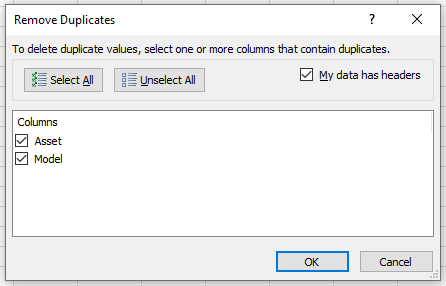
Of course, we don’t want to factor column headers into our de-duplication of data. So we check the relevant box to tell Excel not to de-duplicate the first row of our data. Then just click ok and all the duplicate rows of data will be removed!